 Deutsch
 English
 Français
Create and edit the Route
With the route planning module, you can create routes with up to 250 stops. When you start route planning, the map view appears.
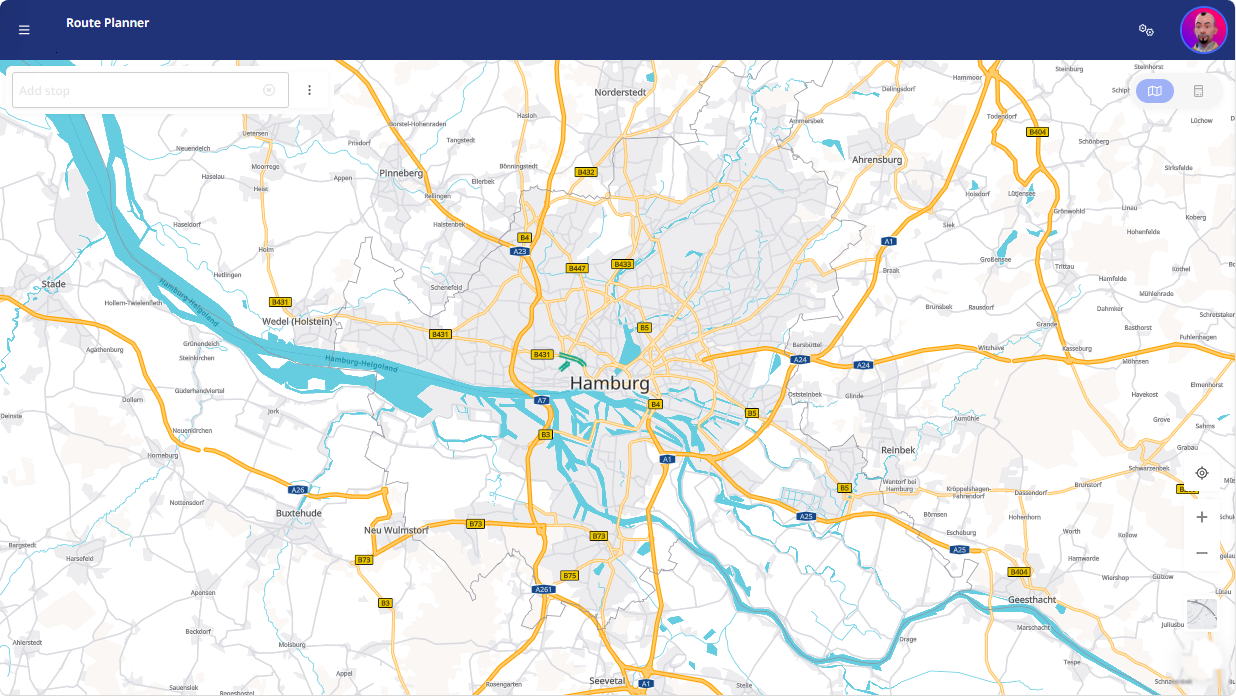
To create and edit a route, follow these steps:
 Create a route
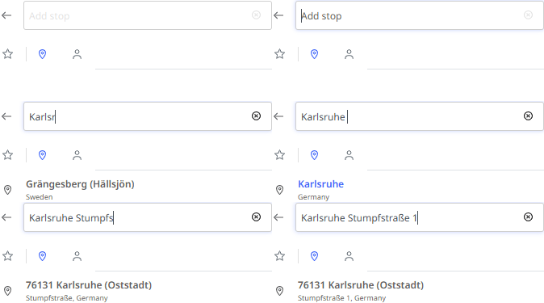
|
|
|
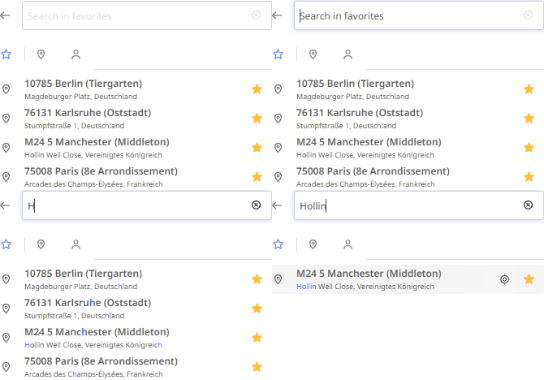
|
|
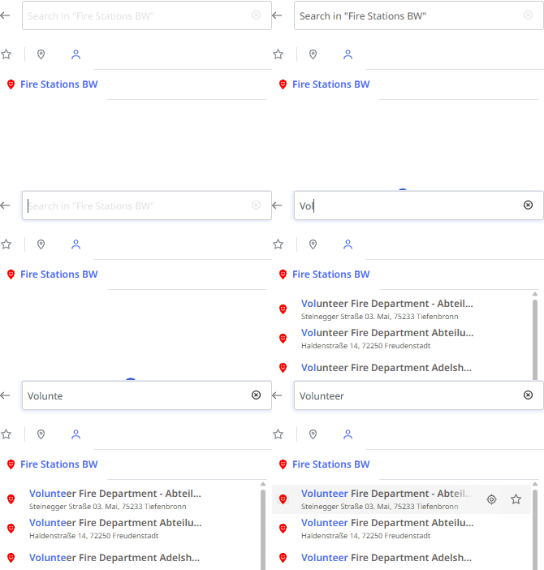
|
|
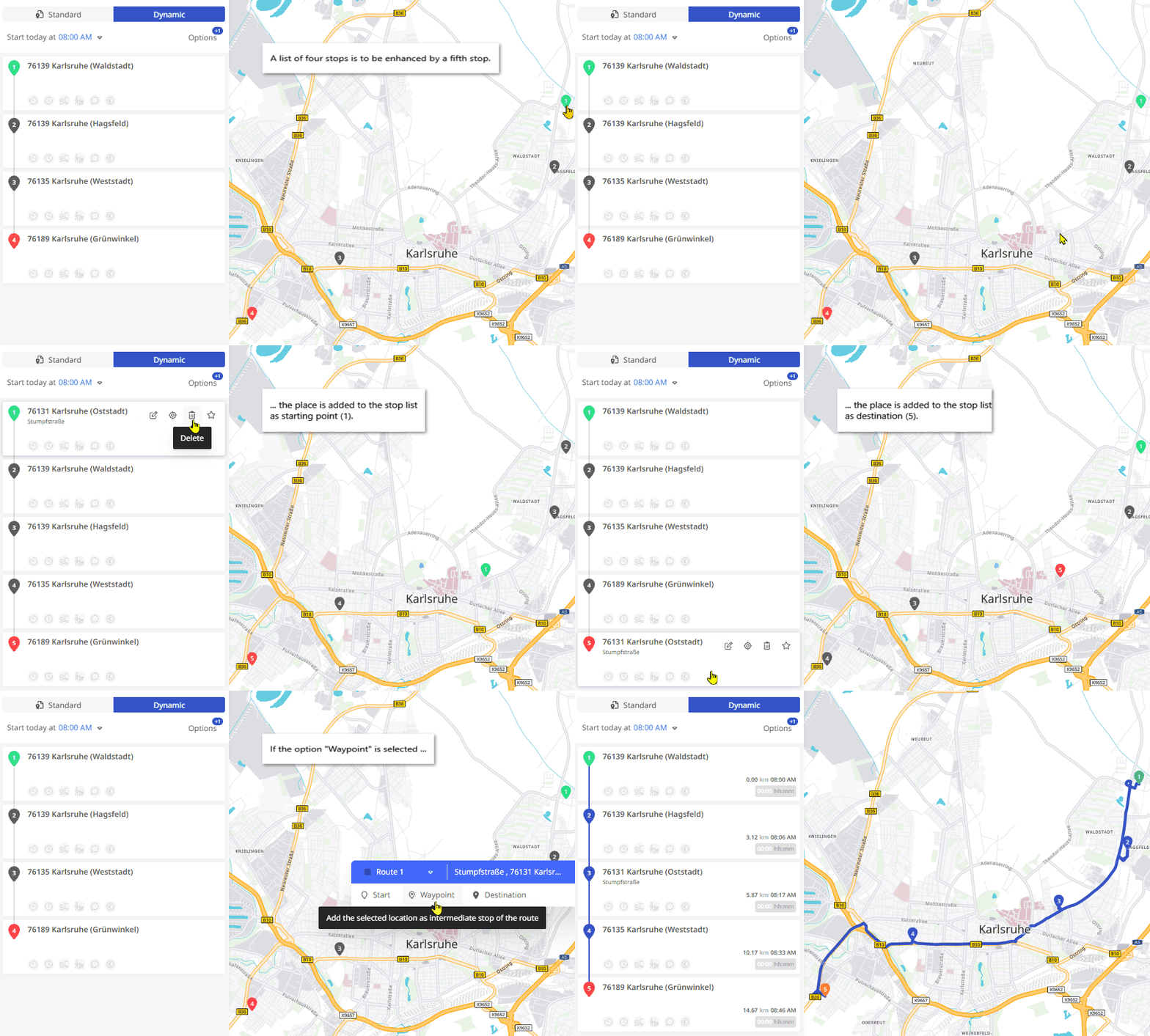
|
|
|
|
|
 .
. (see “
 (see “
 icon to copy the address or the coordinates of the stop to the clipboard.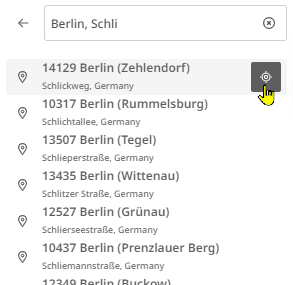

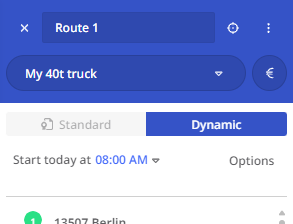
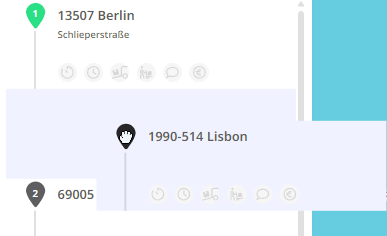
Note: You can change the order of stops by dragging and dropping them in the list. Grab the number of the stop and move it to the desired position.
If the route was already calculated in the previous order, you must click the <Calculate> button again, as the result is reset when stops are changed.
-
Route display
-
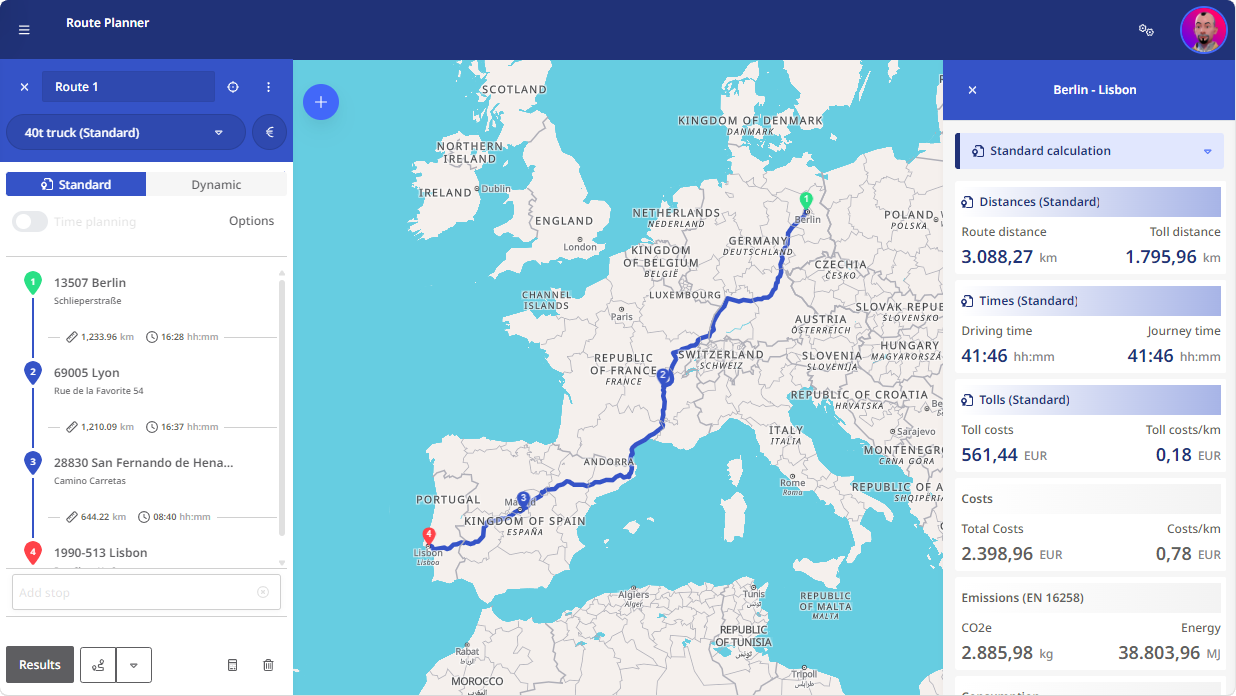
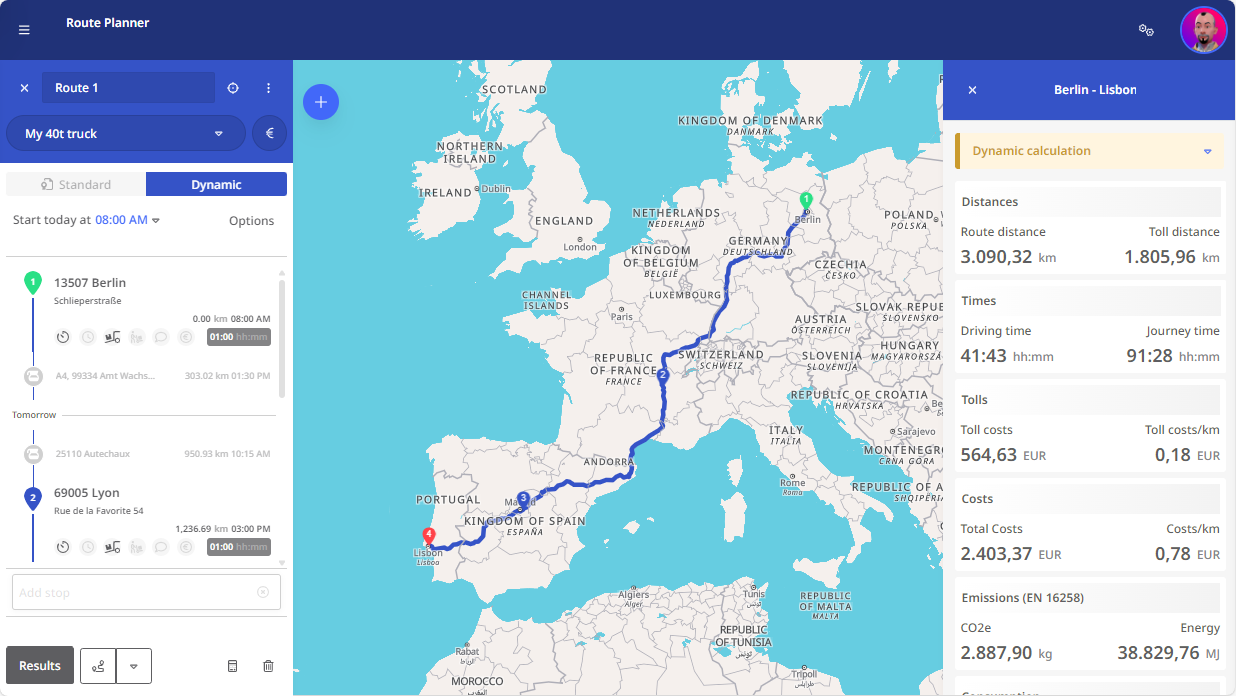
The calculated route is shown on the map.
-
On the left, you see the route sequence; on the right, you get details on:
-
Distance, time, cost, toll
-
Emissions and consumption
-
-
These are based on:
-
Your vehicle and cost profiles
-
Individual stop settings (in dynamic planning)
-
The traffic situation typical for the planned time of the route (in dynamic planning)
-
-
Reverse the Order of a Route
|
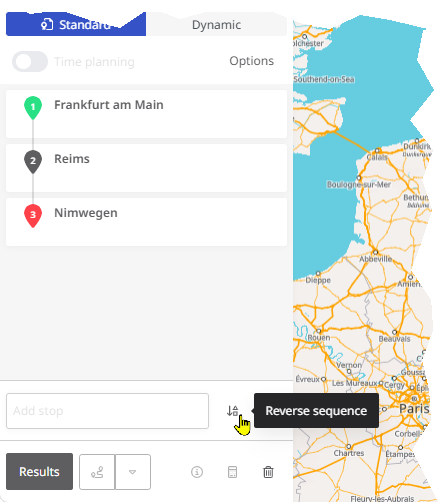
To reverse the order of a route (e.g., to drive the same route in reverse the next day), click the <Reverse Order> button next to the “New Stop” input field at the bottom right. |
|
|
|
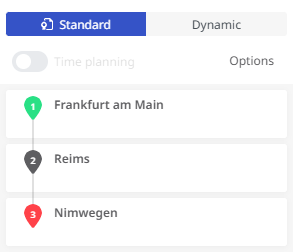
The route will then be rebuilt in reverse order and can be recalculated. |
 |
|
Create a Route with Return to Start
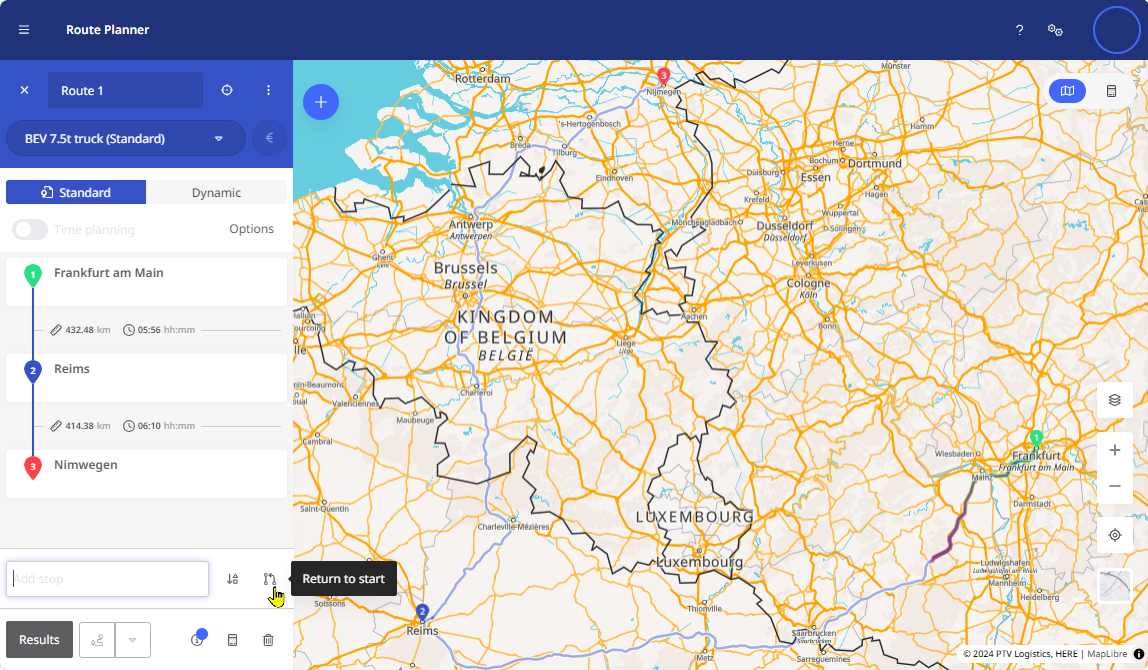
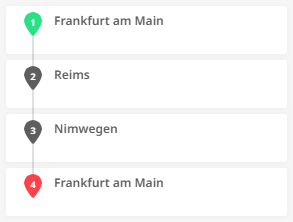
If you want to define a route where the destination is the same as the starting point (a round trip), you can enter the starting point again in the “New Stop” field. Um Ihnen die To avoid re-entering the address, you can alternatively click the <Return to Start> button next to the input field.
|
This duplicates the starting point (e.g., “Frankfurt am Main”) and adds it to the end of the stop list. |
|
Create Routes with Ferry Connections
By default, routes are calculated avoiding ferry connections. If a ferry can be bypassed (e.g., via a tunnel or reasonable detour), it won’t be selected.
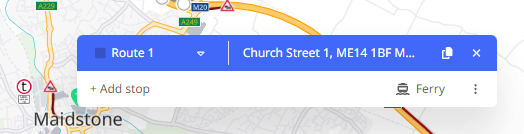
If you want to include a ferry, search for it and add it as a stop:
Proceed as follows:
|
|
|
|
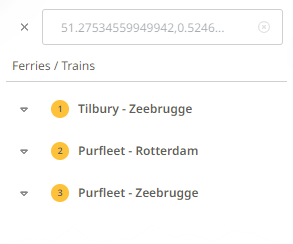
 Find ferry nearby> button to search for nearby ferry connections.
Results are shown in the list on the left.
Find ferry nearby> button to search for nearby ferry connections.
Results are shown in the list on the left.
|
|
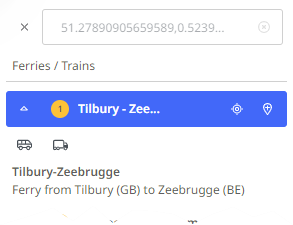
 to center the ferry’s starting point on the map.
|
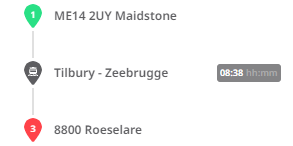
|
 icon to add it to the stop list.
 Warning: The ferry connection is automatically added to the stop list at the most suitable position. However, please note the following: A ferry connection cannot be set as the start or end point of a route. If you have not yet defined any other stops in your stop list, or if the ferry connection stop is moved to the beginning or end of the stop list, e.g. by drag & drop, the route cannot be calculated.
You must then either add more stops after the ferry or manually move it within the list.
As long as the ferry is first or last in the list, the route cannot be calculated, and a warning is shown under the ferry connection.
|
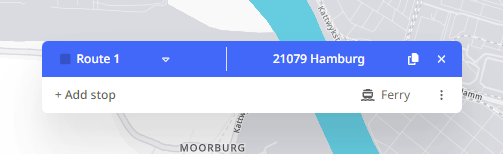
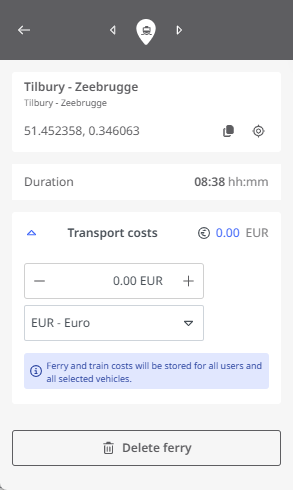
In the detailed view of the stop, the ferry duration is displayed for the ferry in addition to the address and coordinates of the starting point. You can also enter the cost of the ferry connection here so that it is included in the cost calculation for the route. Apart from deleting the stop, no other editing of this stop is possible. |
|
Select a Vehicle Profile
|
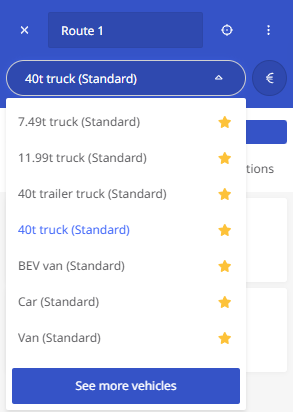
To select a suitable vehicle for your route, click the drop-down switch at the top of the route planner. The favorites list of available vehicles appears (see “Vehicles as favorites“). You can select the desired vehicle profile here. If the desired vehicle is not listed, click <Show More Standard Vehicles> or <Show More Vehicles> to access all vehicles. |
|
|
|
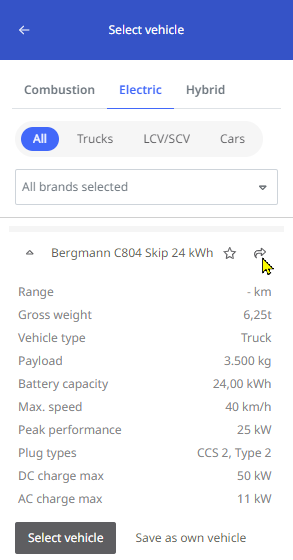
This list is grouped by vehicle categories. For electric vehicles, additional information is available.
Click the arrow button to select a vehicle.
|
 |
|
Note: If you’re using the route planner for the first time, your favorites list may be empty.

You must select at least one vehicle via <Show More Standard Vehicles> or <Show More Vehicles> and optionally add it to your favorites (see “Vehicles as favorites“).
If no vehicle is selected or in your favorites, route calculation is not possible. The <Calculate> button will be inactive, and a tooltip will appear. Optimize the Sequence of a Route
To plan a route efficiently and reduce unnecessary travel (and associated costs), use the <Optimize sequence> button below the stop list. Stops will be rearranged to create the shortest route. Start and end points remain fixed.
Next to the <Optimize sequence> button, the <Optimize selection> drop-down lets you choose which section of the route to optimize.
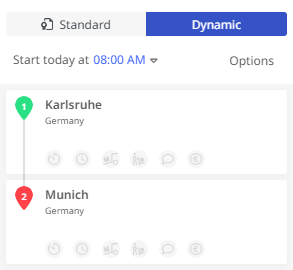
Note: The “Optimize sequence” function is available for both the “Standard” and “Dynamic” calculation modes. However, in “Dynamic” calculation mode, a standard vehicle must be used — a corresponding tooltip is displayed.
Note: The “Optimize sequence” function can only be used if your route/stop list contains at least 4 stops.
Hinweis: Die Funktion “Auswahl optimieren“ kann nur verwendet werden, wenn Ihre Route/Stoppliste mindestens 5 Stopps enthält.
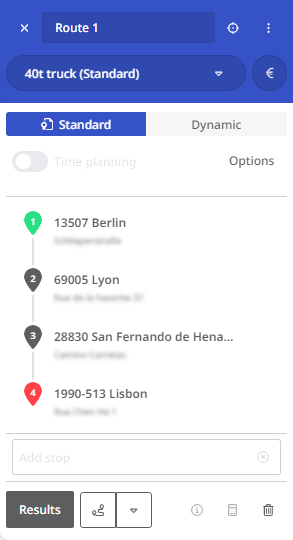
The route shown here includes stops in Berlin, Karlsruhe and Hamburg on the way from Warsaw to Lyon. | 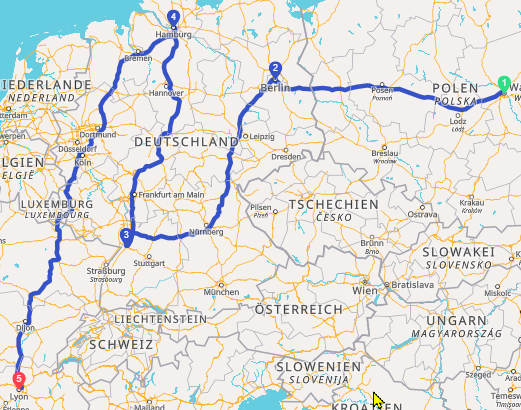 |
By optimizing the sequence for all intermediate stops (stops 2-4), the stops in Hamburg and Karlsruhe are automatically swapped, resulting in a saving of around 1000 kilometers on the journey. | 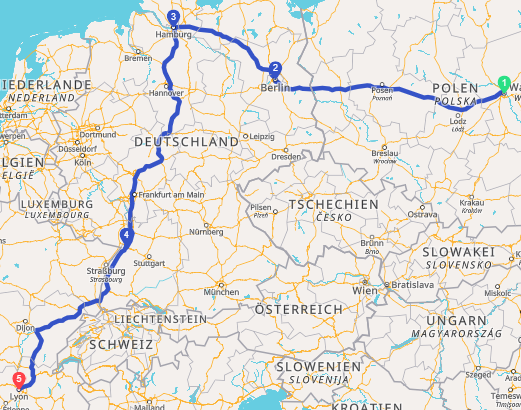 |
However, if only stops 2 and 3 or 3 and 4 are selected for the optimization, the optimization does not lead to any improvement.
Change the route via drag & drop
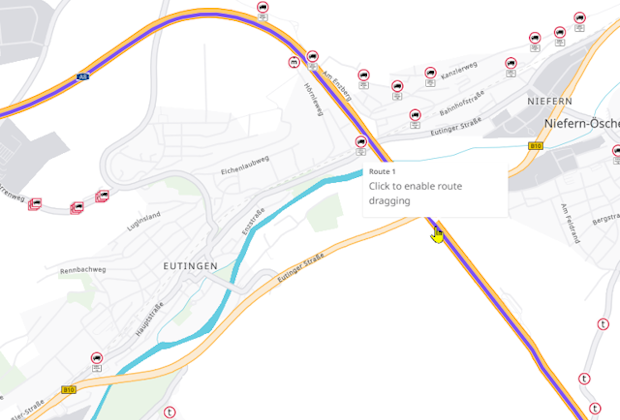
If you have calculated a route in dynamic mode, you can also change the course of the route via drag & drop. This enables you to guide the route via certain roads (e.g. to bypass a specific area), even if this does not correspond to the optimal route calculated.
Add via points
The route is changed via the insertion of via points on the map.
Attention: Way points are not listed in the stop list. This means that no detailed processing (service time, loading, etc.) is intended for via points. However, the via points are written to the CSV file as coordinates when the route is exported.
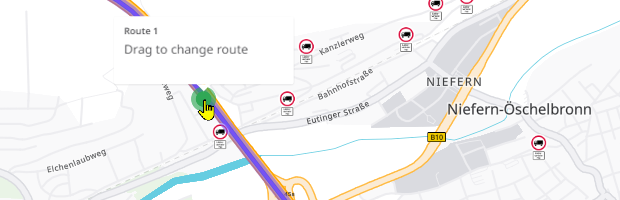
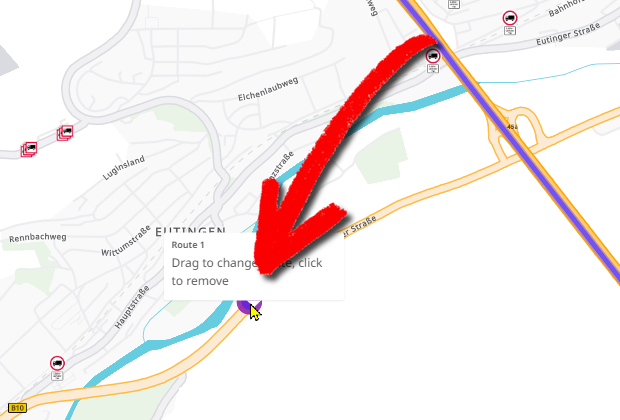
To change the course of your route via drag & drop, proceed as follows:
|
|
|
|
|
|
|
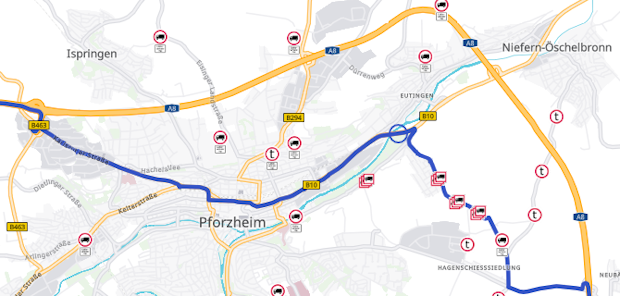
Your route is now recalculated. When you zoom in into the affected area again, you can see the new course of the route. You may need to add several via points until the route of the route meets your wishes. |
|
|
Note: The accuracy of the via point that is created via drag & drop depends on the zoom factor in the map view. The larger the area displayed in the map area, the less precise the accuracy of the via point (deviations up to 10 kilometers). However, high accuracy (deviations of up to 10 meters) can be achieved in very close zooms. The stop list did not change by adding the via point / via points, since the via points are not considered as stops. As long as you do not discard the route, the via points will be preserved. So if you add further stops, the new, changed route will also be calculated with the set via points. The via points remain visible on the map. If you export the route as a CSV file, the via points are included.
In this case, only in the Datei-Spalten M (longitude), N (latitude), Q (search radius) and AB (load changed) are included. |
|

 Move or remove the via points
To move individual via points or remove them from a changed route, proceed as follows:
|
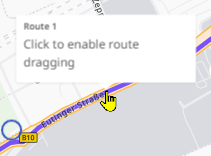
|
|
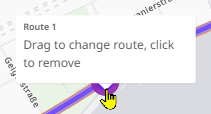
|
| The route will now be recalculated with the new position of the via point or without the way you just removed. | |