Reading time: minute(s)
 Deutsch
 English
 Français
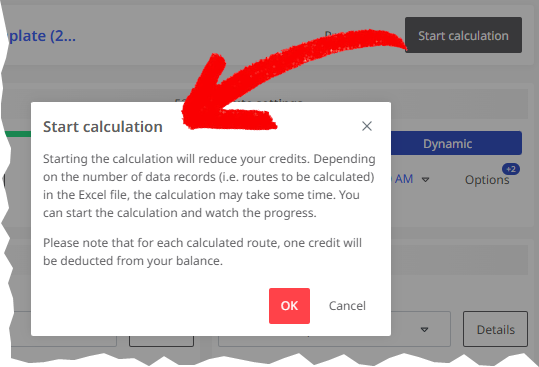
Start automatic route calculation
Once you have set all the parameters, you can start the automatic route calculation based on the Excel® file.
|
|
|
|
|
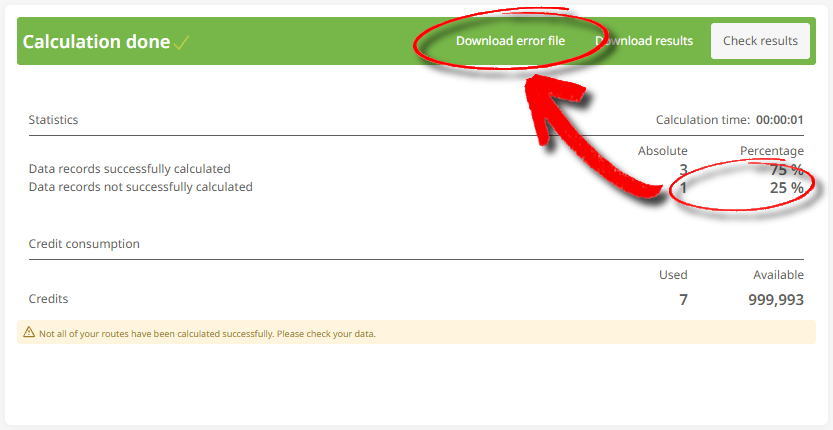
If routes are displayed as not successfully calculated in the summary (e.g., because individual stops could not be geocoded), you can use the <Download error file> button to obtain an Excel® file with the error messages. If the cause is geocoding, correct the affected addresses in the import file and then import the data again. The error file shows the affected row of the import or result file, the error, and the internal cause of the error.
|
|

-
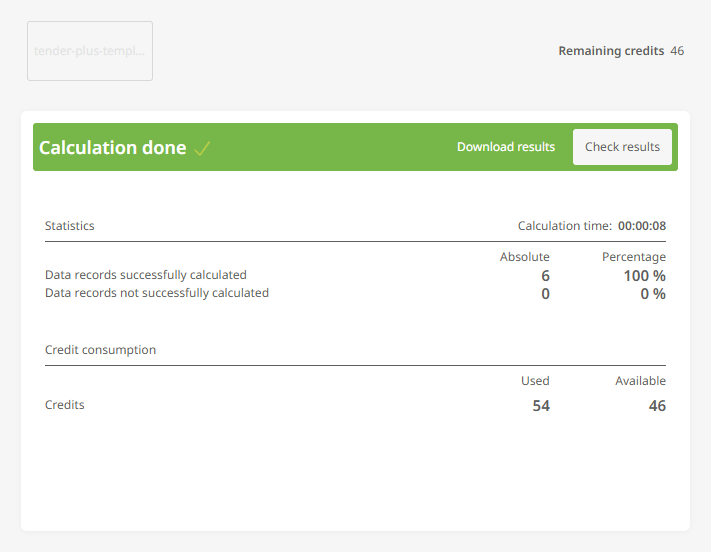
You can now:
-
Show the results in the overview (see ”Show result preview”).
-
Download the results as an Excel® file (see “The results file”).
-