Reading time: minute(s)
 Deutsch
 English
 Français
Show result preview
After you have completed the route calculation in the previous step and the summary is displayed, click on <Check results> to return to the start page of Tender+.
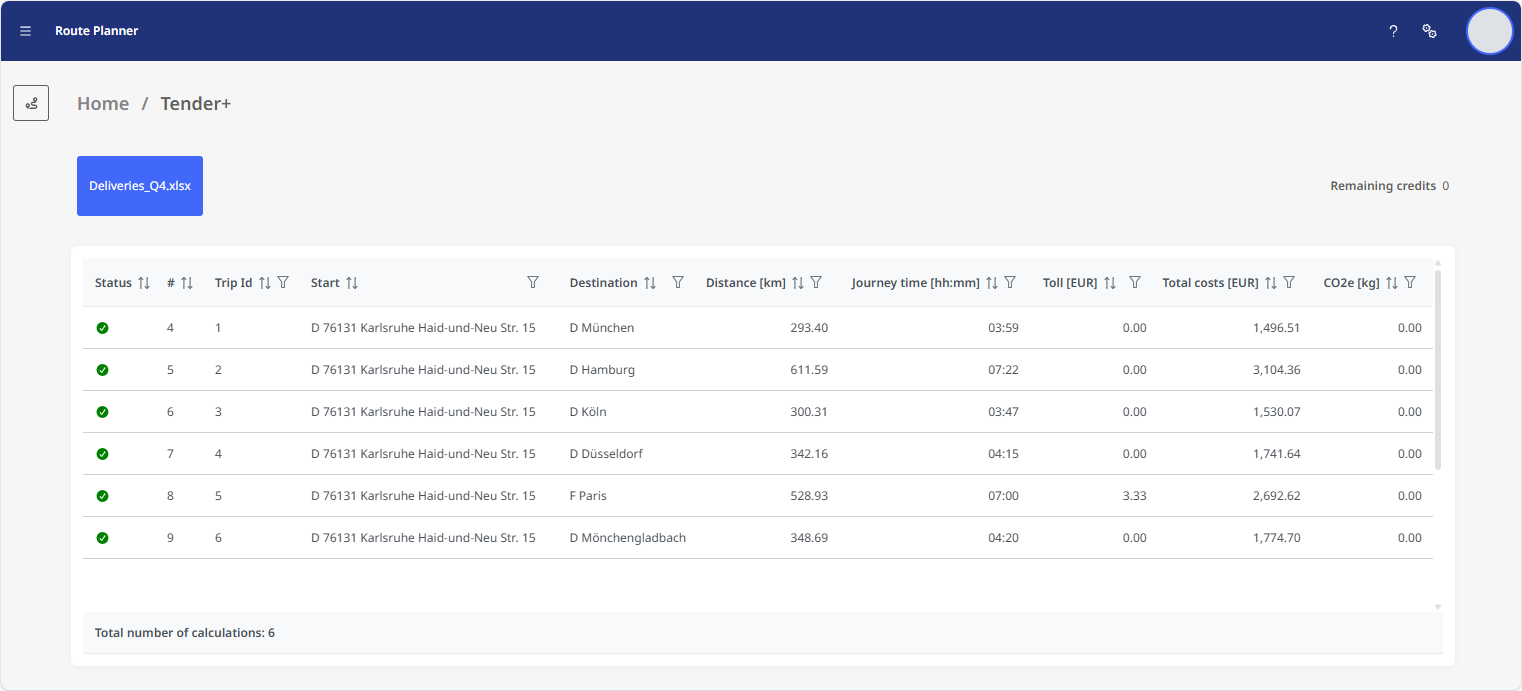
The calculated routes are displayed in an overview on the start page.
In this view, you can sort the calculated routes according to each column displayed.
You can also define filters for most columns. This makes it easier to maintain an overview, especially with extensive lists.
The following columns are displayed:
| Column title | Meaning | Remarks |
|---|---|---|
| Status | Indicates whether the route was successfully calculated | Successful routes are marked with a green check mark, unsuccessful ones with a red exclamation mark. A tooltip displays the return value. |
| # | Line number of the route in the result file | Since the first three lines of the result file contain column headers, the numbering starts with 4. |
| Trip ID | ID of the route from the imported Excel® file | |
| Start | Start location of the route | The address is displayed in the format country code / postal code / street and house number. |
| Destination | Destination location of the route | |
| No. stops | Number of stops contained in the route | |
| Distance | Distance of the route in km | |
| Journey time | Driving time of the route | |
| Toll | Toll costs for the route | The amount is displayed in the currency that was stored in the settings at the time of calculation. |
| Total costs | Total costs for the route | |
| CO2e | Total CO₂ emissions for the route | Emissions are quantified as CO2e (CO2 equivalent = CO2 * 1 + CH4 * 28 + N2O * 265). |
The overview is only an abbreviated representation of the calculation results. For a detailed list, download the calculation results as an Excel® file (see “The results file”).