Managing databases
In the Data Manager Administration tab, databases and back-up copies can be created and structural changes can be made to a database.
Note: You will only be able to access this function if you have been assigned the appropriate rights in the administration tool.
Overview of the interface
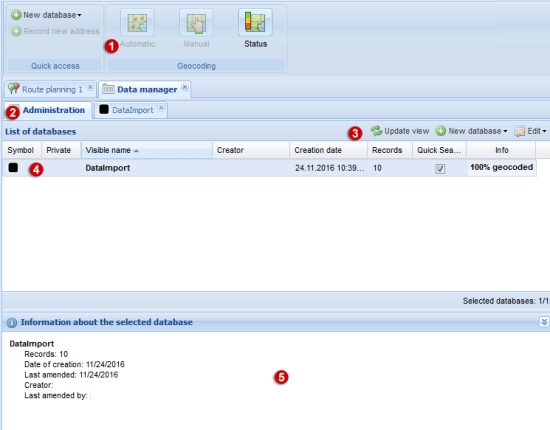
(1) Use case toolbar
In the toolbar there are special functions available for the selected use case (see Data Manager toolbar ).
(2) Administration tab
All available databases are listed in the Administration tab.
Note: An opened database is displayed in a separate tab. In the tab of a database you can create addresses, geocode addresses, etc. (see Managing Addresses).
(3) Toolbar
The following functions are available on the toolbar or via the context menu.
| Element | Description |
|---|---|
 Refresh view Refresh view |
Updates the list so that changes made by other users are shown. |
 New database New database |
Create a new database (see Create database). Here you can specify whether you want to create an empty database or import an existing address file. |
 Edit Edit  |
Opens a drop-down list with the following functions: |
 Show in a new tab Show in a new tab |
Displays the addresses of the selected database in a new tab. |
 Create backup Create backup |
This creates a backup copy of the selected database (see Creating and restoring a backup copy of a database)). Notes: Databases for which a backup copy has been created are indicated with the icon |
 Restore from backup Restore from backup |
This overwrites the selected database with the backup copy (see Creating and restoring a backup copy of a database)). |
 General information General information |
Here you can edit the general details of the selected database (see Changing the database). |
 Geographic Details Geographic Details |
Here you can set whether the geocoding of the data is to be performed using coordinates or location names. (see Changing the database). |
 Field assignment Field assignment |
Here you can change the structure of the table (see Changing the database). |
 Display of the addresses Display of the addresses |
Here you can select the symbol with which the database and the individual addresses are displayed in the program and on the map (see Changing the database). |
 Export Export |
This exports all the addresses in the database as a csv file. |
 Re-import Re-import |
Here you can re-import the addresses from a CSV file into the database (see Re-import data ). |
 Cancel geocoding Cancel geocoding |
Aborts current geocoding. |
 Delete Delete |
Delete the selected database. |
(4) Selected database
For each database, various information is displayed in a single line.
Notes: In the Symbol column, the icon  indicates a database for which a backup copy has been created (see Creating and restoring a backup copy of a database)).
The Status column indicates the percentage of the data which has been successfully geocoded. If not all of the data have been geocoded, you can geocode the data again (see Post-geocoding of records).
(5) Detailed view
The detailed view gives detailed information about the selected database.