Editing a stop
If you have defined a list of stops for your route and you want the route to be calculated in dynamic mode, i.e. taking into individual settings you can define these settings individually for each stop. You can also define stop costs, i.e. costs incurred for each individual stop, in standard mode regardless of the "Dynamic" calculation mode.
|
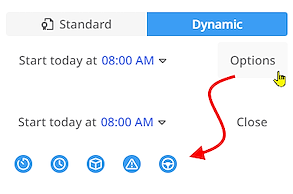
First activate the calculation mode "Dynamic". Via the <Options> button you can then
|
|
|
You can also access these options via the As an additional setting, you can also specify here for the "Loading" setting whether the effect of the load is to be calculated
Note: The effect of the load on the emissions during a route can only be calculated if a calculation method in accordance with HBEFA is set for the emissions (see "Settings"), as other methods do not include the load as a factor.
You can also specify which directive should be used to take driving and rest times into account. Note: The settings for these options are evaluated for the entire route,
not just for individual stops. |
|
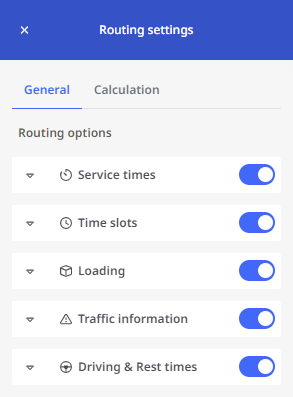
 Service times
 Time slots
 Loading and unloading
 Traffic information
 Rest periods and driving times
 button. This will take you to the "Routing settings" area. Explanations for the individual options are also displayed there on the "General" tab.
You can find an overview of the routing settings here.
|
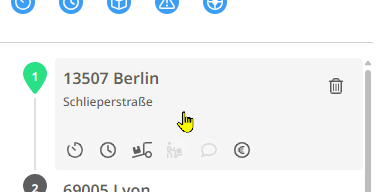
You can now define settings for each stop individually. To do this, move the mouse pointer over the stop you want to edit. As soon as it is highlighted in gray, click on it. |
|
|
The side panel for editing the stop now opens. The following options are available to you here:
The start and departure times are only displayed if the route has been calculated before. If no service time and/or time slot has been defined for the stop, the start time is the same as the departure time.
|
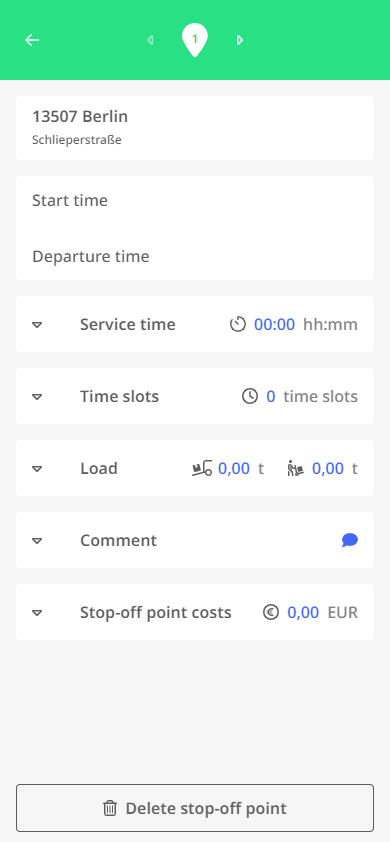
|

 and
and to switch back and forth between the various stops on the route.

 /
/ 



To change the individual settings, proceed as described below.
Editing the service time of a stop
-
In the "Service time" field, click on the
 icon to expand.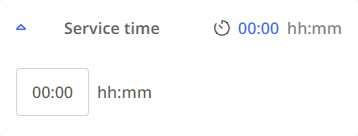
-
Now click in the number field (default setting 00:00). Here you can either enter a time manually in hours and minutes or specify this time using the selector switch.
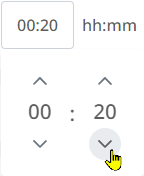
-
As soon as you click on another part of the window from the number field, your service time for this stop is saved.
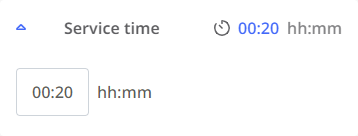
Editing the time slot for a stop
-
In the "Time slot" field, click the
icon to expand.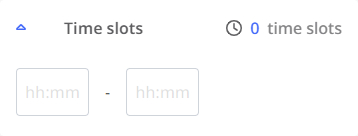
-
Now click in the first number field. Here you can either enter a time for the start of the time slot manually or specify this time using the selector switch. Proceed in the same way with the second number field for the end of the time slot.
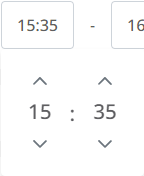
-
As soon as you click on another position in the window from the number field, the time slot for this stop is saved.
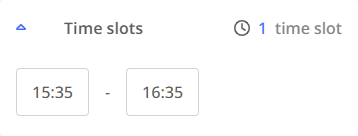
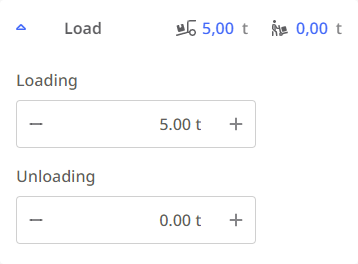
Editing the load for a stop
-
In the "Load" field, click on the
icon to expand.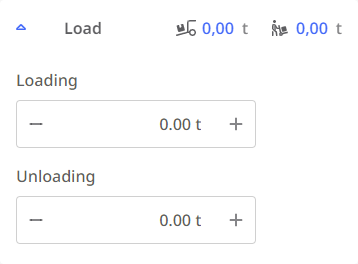
-
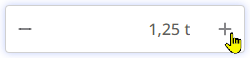
Now click in the number field for loading or unloading - depending on whether cargo is to be loaded and/or unloaded at the stop. Here you can either enter a load manually or increase/decrease it in quarter ton increments using the + and - buttons.
-
As soon as you click on another part of the window from the number field, the load for this stop is saved.
Adding a comment to a stop
-
In the "Comment" field, click on the
icon to expand.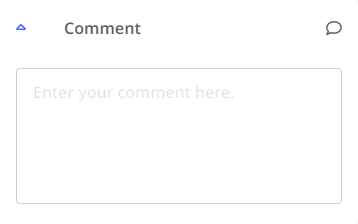
-
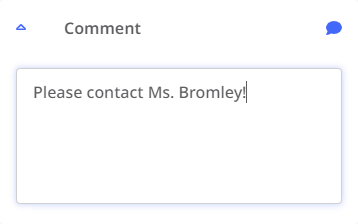
Now click in the text field. You can enter a free text comment here. The input is limited to 255 characters and does not allow formatting.

-
As soon as you click on another part of the window from the text field, the comment for this stop is saved.
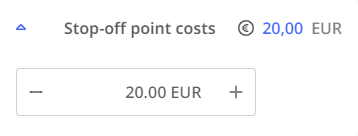
Editing the costs for a stop
-
In the field "Stop-off point costs", click on the
icon to expand.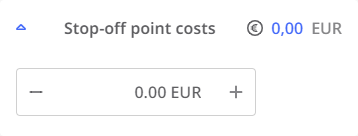
-
Now click in the number field. Here you can either enter an amount manually or increase/decrease it in five-euro increments using the + and - buttons.
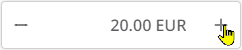
-
As soon as you click on another part of the window from the number field, the costs for this stop are saved.