Adjusting the permissions for a vehicle profile

In , you can specify which authorizations other users in your company have for the vehicle profiles created. For this purpose, a vehicle profile always has one of the following statuses:

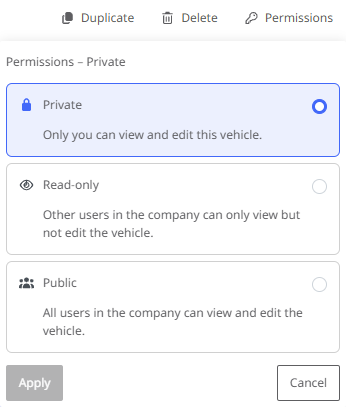
  • Private - Only the user who created the vehicle profile can view and edit the profile.

  • Read only - All users in the company can see and use the vehicle profile. Only the user who created it can edit it

  • Public - All users in the company can view, use and edit the vehicle profile.

Note: Standard vehicles always have the status "Public" and cannot be changed.

The status of a vehicle profile is displayed in the list of vehicles in the first column. If you move the mouse pointer over one of the status icons, a tool tip displays the corresponding status as text.
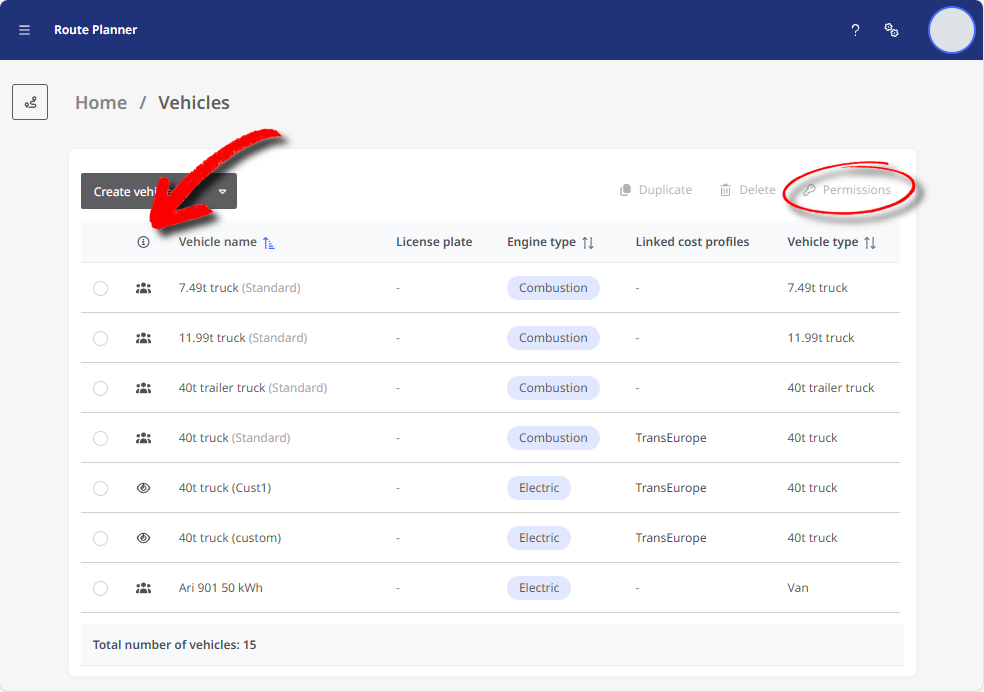
To change the status of a vehicle profile,

  1. select the vehicle profile using the radio button to the left of the vehicle

  2. then click on the < Permissions> button. The selection window for permissions is displayed.

  3. Now select the desired status for the vehicle profile.

Note: The availability of the three status options depends on the respective vehicle profile.

  • A profile that you have created yourself initially has the status "Private" and you can set it to "Read only" or "Public".

  • A profile that has been set from "Private" to "Read only" cannot be changed back to "Private" status.

  • A profile that has been set from "Read only" to "Public" can be set back to "Read only" status by the creator.

  • Standard vehicles always have the status "Public". This cannot be changed.