Create routes from imported stop lists
You can import stations of a route from a text file with the CSV file extension. Please note that the file to be imported must fulfil certain conventions. You can create these stop lists from TLNplanner Internet, for example.
Several options are available for the import:
-
Importing a stop list via the "Load route" area
-
Importing stop lists via drag&drop on the map view in the route planner
-
Importing a stop list via drag&drop in the stop list in the route planner
These options are described in the following sections.
Importing a stop list via the "Load route" area
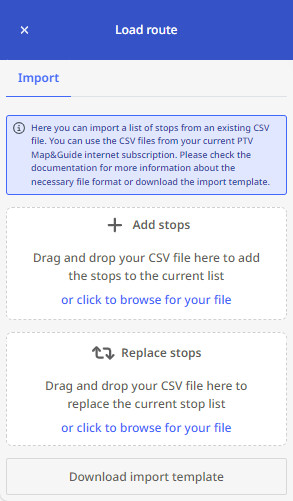
If you have already started to create a stop list in the route planner, you can call up the "Load route" area via the three dots in the header of the stop list. Under the tab "Import" you can import a CSV file. A distinction is made here between two procedures:
In both cases, you can import the CSV file either
|
|
Importing stop lists via drag&drop on the map view in the route planner
You can drag&drop the file to be imported into the interface of TLNplanner. If you drag the file into the map view, a highlighted area (drop zone) appears in which you can drop the file.
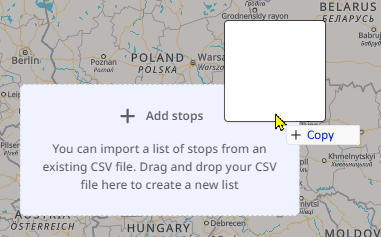
As soon as you drop the file there, the stops contained in the file are adopted as a new list for a route in the left-hand window area. If a list or route already exists there, the imported file is created as a list for a second route. If two lists / routes already exist, no further files can be imported via drag&drop in the map view - the drop zone does not appear in this case.
Importing a stop list via drag&drop in the stop list in the route planner
You can drag&drop the file to be imported into the interface of TLNplanner.
|
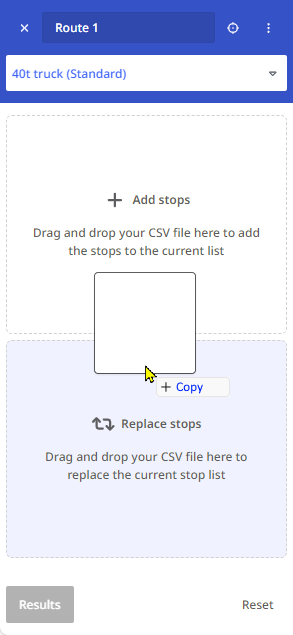
If you have already started a list and drag the file into the list, two highlighted areas (drop zones) appear in which you can drop the file.
|
|
Conventions of the CSV file for the import
If you have exported your stop list as a CSV file fromTLNplanner Internet, it complies with the conventions that must be adhered to for import into TLNplanner.
However, if you want to make manual changes to such a file or even create a file manually, please note the file structure shown below.
| Column | Meaning | Example | Remark/Notes |
|---|---|---|---|
| A | Country | NL | |
| B | Postal code | 1036 | For postal codes in the Netherlands, it is recommended to enter only the four numbers and to enter the street and house number in column D for a better geocoding result. |
| C | Location | Amsterdam | |
| D | Street and house number | Frambozenstraat 7 | |
| E | Duration of stop in minutes | 20 | |
| F | Time slot 1 - from | 08:00 | |
| G | Time slot 1 - to | 09:00 | |
| H-K | These columns are currently not evaluated. | ||
| L | Comment | No deliveries on Fridays | |
| M | X-coordinate (longitude) | 4.89367 | Compatible with all standard coordinate formats, e.g. WGS84 (decimal) |
| N | Y-coordinate (latitude) | 52.40934 | Compatible with all standard coordinate formats, e.g. WGS84 (decimal) |
| O | Loading in kg | 500 | |
| P | Unloading in kg | 100 | |
| Q-Y | These columns are currently not evaluated. | ||
| Z | Stop-off point costs (amount) | 12.50 | If you enter a value in column Z, you must specify the currency in column AA. |
| AA | Stop-off point costs (currency) | EUR | Currently only the value EUR is supported. |