Remote Control – automatically input stop-off points and calculate route
PTV Map&Guide internet offers you the option to automatically input stop-off points in the route planning use case. This allows you to transfer address information from trip or customer management systems to PTV Map&Guide internet, calculate the route and display the result (for example).
The following is possible via Remote Control:
-
Automatic login to PTV Map&Guide internet
-
Transfer of a vehicle
-
Transfer of stop-off points via URL to an existing list of stop-off points, which is shown in the client:
Note: The number of stop-off points which can be transferred is limited in older browser versions.
-
Subsequent routing (performed either automatically of manually by the user)
-
Deleting the existing stop-off list
-
Automatic geocoding of addresses
-
Manual transfer of the route calculated on the client to a third system.
Note: The data can be input automatically via Remote Control. However, once the route calculation has been completed, the results must be transferred manually within the program.
Overview
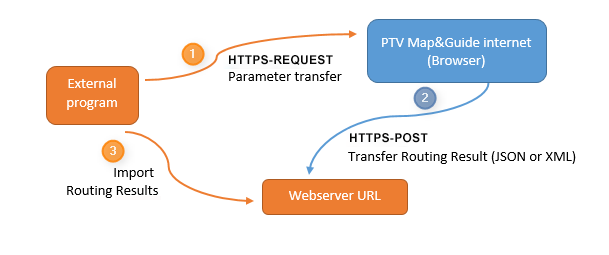
(1) Transferring parameters and stop-off points from an external program
Parameters and stop-off points can be transferred from an external program by making an HTTPS request to PTV Map&Guide internet.
The transfer can take place directly via the URL or using an HTML form.
You can transfer the following data:
-
Login data (user name, password and language)
-
Routing data (vehicle, action parameters)
-
Stop-off points
-
Information on the return (unique identifier, export URL, export format)
You can find more detailed information on transfer parameters in the article What parameters can I transfer?
You can find more detailed information on the Remote Control procedure in the article How does Remote Control work?
We have made a test site available to you so that you can try out transferring parameters in advance.
You can call up the test site under the following URL: https://mginter.mapandguide.com/v7.10/remote/remote_test.html
You can find more detailed information on how to test Remote Control under How can I test Remote Control?
(2) Calculating a route and exporting the results
PTV Map&Guide internet inputs the data and carries out the desired action.
Once the route has been calculated, the user can export the routing result from PTV Map&Guide internet (see How do I transfer the routing results to the calling system?.
The location the results are exported to and the format they are exported in are both dependent on the export parameters that were transferred by the program making the call (see What result is returned to me?).
Tip: We have set up a demo API so that you can test the export of the routing results. You can enter this on the test site as exporturl. Please note that you should not transfer any confidential data to the demo API, as the website is publicly accessible (see How can I test Remote Control?).
(3) Importing routing results into an external program
The result of the route planning is returned in the form of a summary of the route results as well as the stop-off points in XML or JSON format. The format in which the results are returned was specified when the import parameters were transferred. You can import the result into the external program.